
Table of Contents
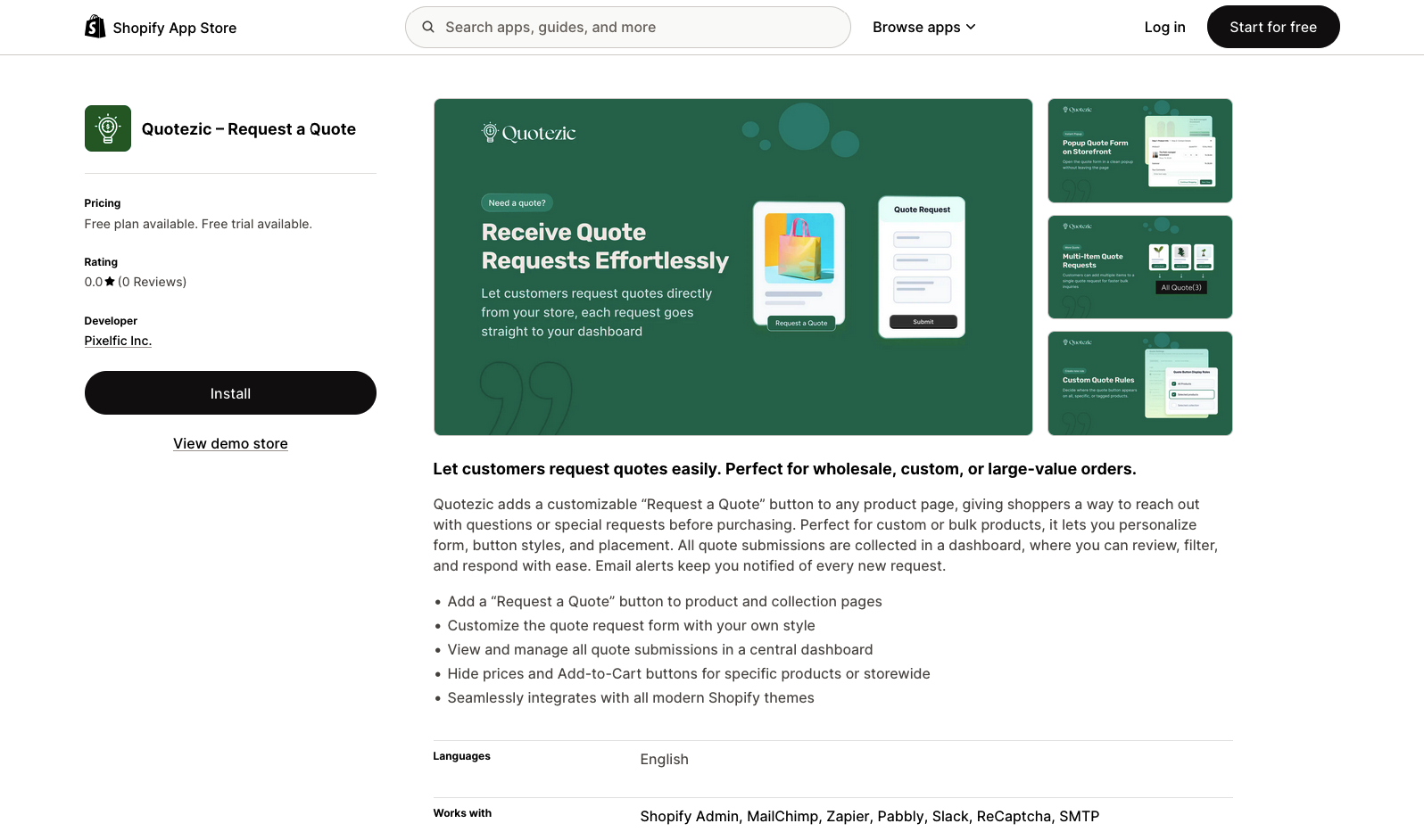
Installing Quotezic – Request a Quote for Shopify is quick and simple. Follow the steps below to get started.
Step 1: Install from Shopify App Store #
- Log in to your Shopify Admin Dashboard.
- Go to Apps from the left sidebar.
- Click Shopify App Store.
- Search for Quotezic – Request a Quote.
- Click Install App.
- Review permissions and click Install to approve.
Once installed, Quotezic will automatically integrate with your store.
Step 2: Enable the Quote Button #
After installation:
- Open Quotezic from your Apps section.
- Navigate to Settings.
- Enable the “Request a Quote” button.
- Choose where to display it:
- Product pages
- Collection pages
- Both
Save changes.
Step 3: Customize the Quote Form #
- Go to Form Settings.
- Add or edit form fields (Name, Email, Quantity, Message, etc.).
- Customize button text, color, and style.
- Adjust placement according to your theme layout.
Click Save Settings when done.
Step 4: Optional – Hide Prices or Add to Cart #
If you’re running a wholesale or custom store:
- Open Visibility Settings.
- Choose products or collections.
- Enable:
- Hide Price
- Hide Add-to-Cart Button
This ensures customers must request a quote before purchasing.
Step 5: Manage Quote Requests #
All quote submissions are available in:
Quotezic → Dashboard
From here you can:
- View all quote requests
- Filter by status
- Respond to customers
- Track conversations
You will also receive email notifications for every new quote request.
Installation Complete #
Your store is now ready to collect custom and bulk order inquiries using Quotezic.
